
Conditions and allergies
Recording your conditions and allergies, and what they change.
Tap Conditions at the bottom.
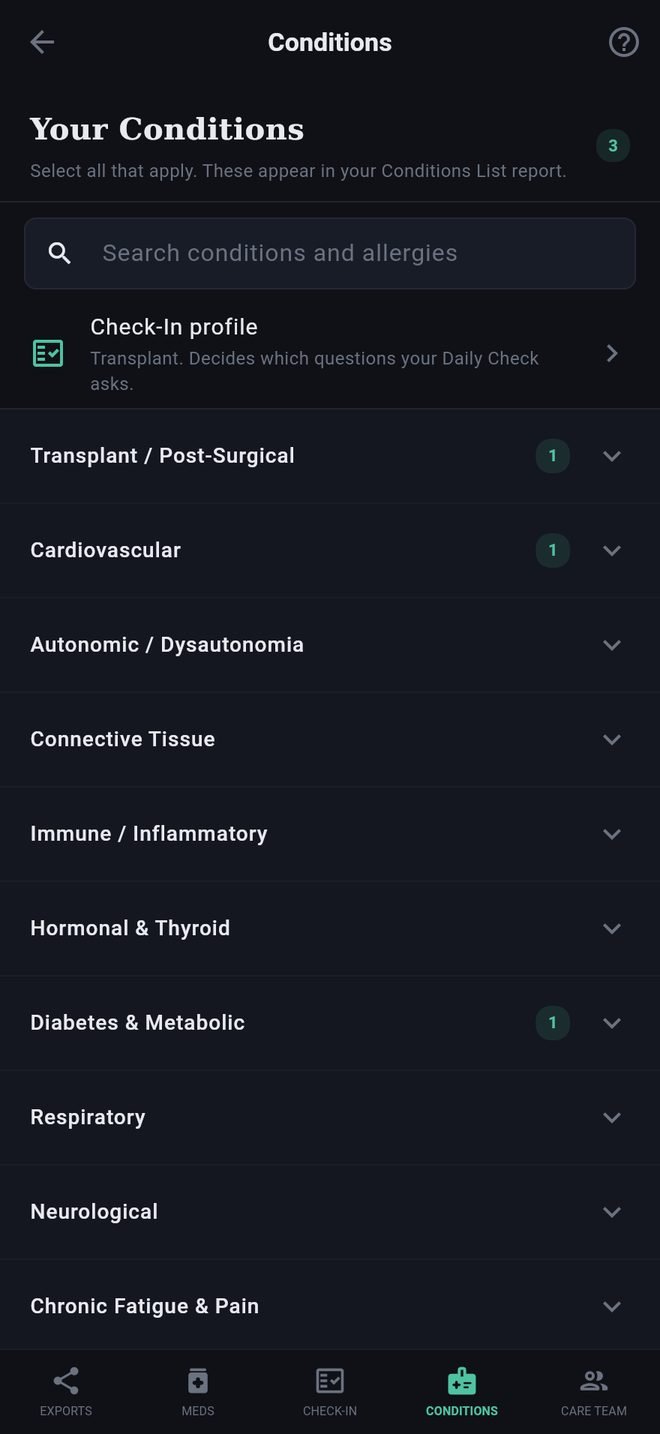
Finding one
The list is long. Type a word or two in Search conditions and allergies at the top and the screen shows every match, with the category it lives in; tap one to tick it. A search also looks in the small print under a name, so "heart stent" finds Coronary Stent. Tap the x to go back to the categories.
If nothing matches, the search offers to add your words as a condition of your own.
Conditions
Conditions are grouped by category. Tap a category to open it and tick everything that applies. The number beside each category shows how many you have ticked.
If a condition is not in any category, open Not in the List? Type It In below the categories and type it on one of the five lines. It is saved when you leave the line, and appears in your reports and Care Packet under Other.
Allergies
Below the conditions: food and environmental allergies, drug and medical allergies, and three lines to type in any that are not listed.
What they are used for
- The Conditions List report, the Full Report and your Care Packet.
- Suggesting your Check-In profile and add-ons. Ticking a heart transplant suggests the Transplant profile with Heart; ticking migraine suggests the migraine add-on. Suggestions only: you choose in Check-In setup.
The Check-In profile line at the top of this screen opens that setup.
Conditions and allergies
Recording your conditions and allergies, and what they change.
Tap Conditions at the bottom.
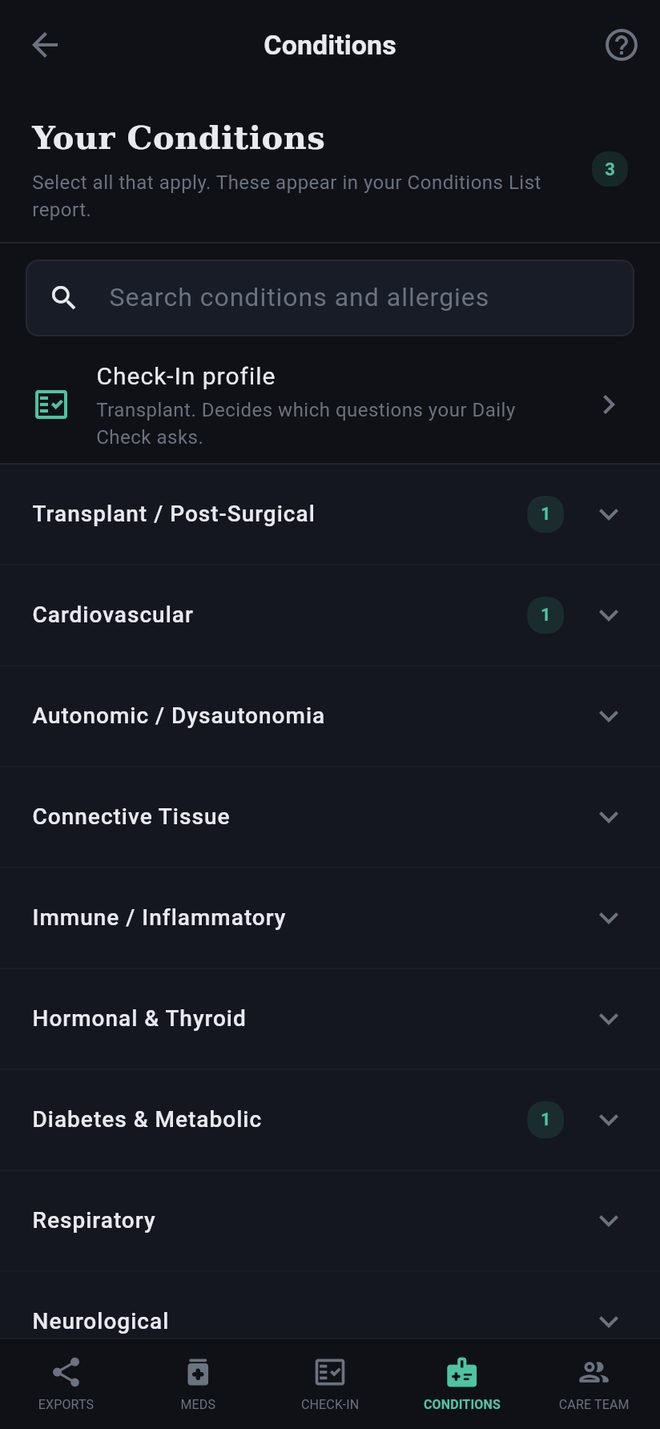
Finding one
The list is long. Type a word or two in Search conditions and allergies at the top and the screen shows every match, with the category it lives in; tap one to tick it. A search also looks in the small print under a name, so "heart stent" finds Coronary Stent. Tap the x to go back to the categories.
If nothing matches, the search offers to add your words as a condition of your own.
Conditions
Conditions are grouped by category. Tap a category to open it and tick everything that applies. The number beside each category shows how many you have ticked.
If a condition is not in any category, open Not in the List? Type It In below the categories and type it on one of the five lines. It is saved when you leave the line, and appears in your reports and Care Packet under Other.
Allergies
Below the conditions: food and environmental allergies, drug and medical allergies, and three lines to type in any that are not listed.
What they are used for
- The Conditions List report, the Full Report and your Care Packet.
- Suggesting your Check-In profile and add-ons. Ticking a heart transplant suggests the Transplant profile with Heart; ticking migraine suggests the migraine add-on. Suggestions only: you choose in Check-In setup.
The Check-In profile line at the top of this screen opens that setup.