First-time setup
The screens you see the first time you open the app.
The first time you open Aevora Reporter it walks you through a few screens.
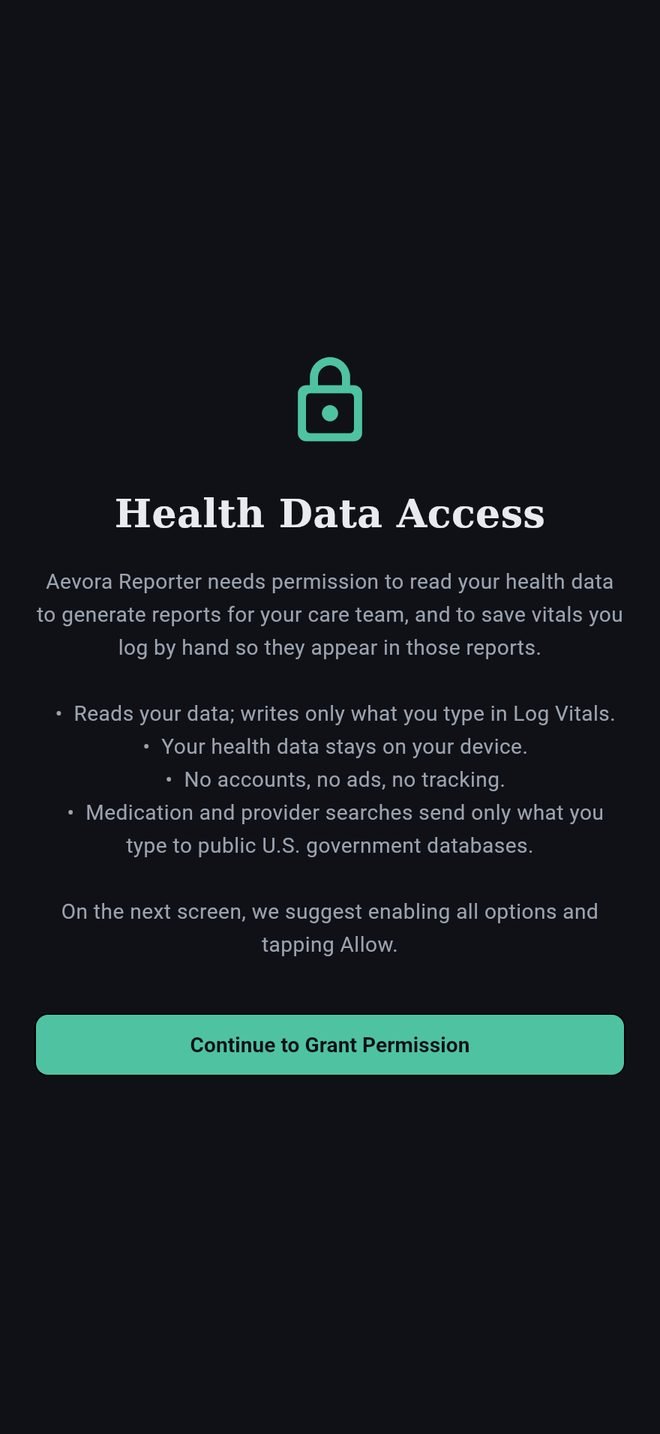
1. Health data access
The app asks to read your health data from Apple Health, and to write the few readings you type in yourself. On the system screen that follows, turn on every option. Anything left off will show as blank in the app. See Health permissions.
2. About you
Your name, date of birth, height, blood type and whether you use pounds and Fahrenheit or kilograms and Celsius. These appear on your reports. You can change them later in Settings under Profile.
Glucose has its own setting in Settings under Profile: mg/dL or mmol/L. Until you choose, the app shows mmol/L with kilograms and Celsius, and mg/dL with pounds and Fahrenheit.
3. Your Aevora folder
Choose one folder where the app keeps your backups, reports and Care Packets. A folder in iCloud Drive works well, because it is still there if you lose your phone. You can tap Not now and choose later. See Your Aevora folder.
After setup
- Add your conditions and allergies under Conditions. They appear in reports and shape what Check-In suggests.
- Add your medications under Meds.
- Add your providers under Care Team.
- Set up Check-In. See Setting up Check-In.
The first time the app opens Today it fetches today and then quietly fills in the last 30 days, which can take a minute.
First-time setup
The screens you see the first time you open the app.
The first time you open Aevora Reporter it walks you through a few screens.
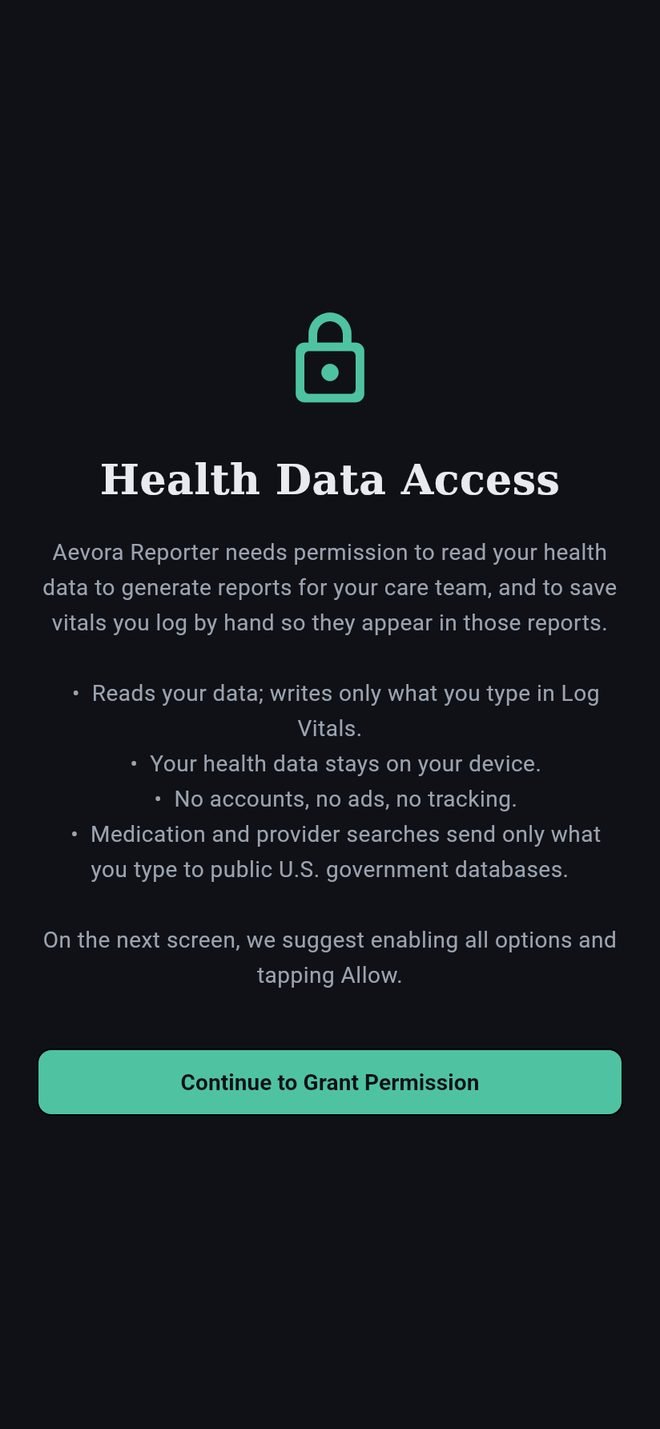
1. Health data access
The app asks to read your health data from Health Connect, and to write the few readings you type in yourself. On the system screen that follows, turn on every option. Anything left off will show as blank in the app. See Health permissions.
2. About you
Your name, date of birth, height, blood type and whether you use pounds and Fahrenheit or kilograms and Celsius. These appear on your reports. You can change them later in Settings under Profile.
Glucose has its own setting in Settings under Profile: mg/dL or mmol/L. Until you choose, the app shows mmol/L with kilograms and Celsius, and mg/dL with pounds and Fahrenheit.
3. Your Aevora folder
On Android there is nothing to choose: files go to a folder called Aevora in your phone's Documents. You can move them to Google Drive later. See Your Aevora folder.
After setup
- Add your conditions and allergies under Conditions. They appear in reports and shape what Check-In suggests.
- Add your medications under Meds.
- Add your providers under Care Team.
- Set up Check-In. See Setting up Check-In.
The first time the app opens Today it fetches today and then quietly fills in the last 30 days, which can take a minute.