
Packet formats and sharing
Full packet, short message, PDF or text, and what sharing means.
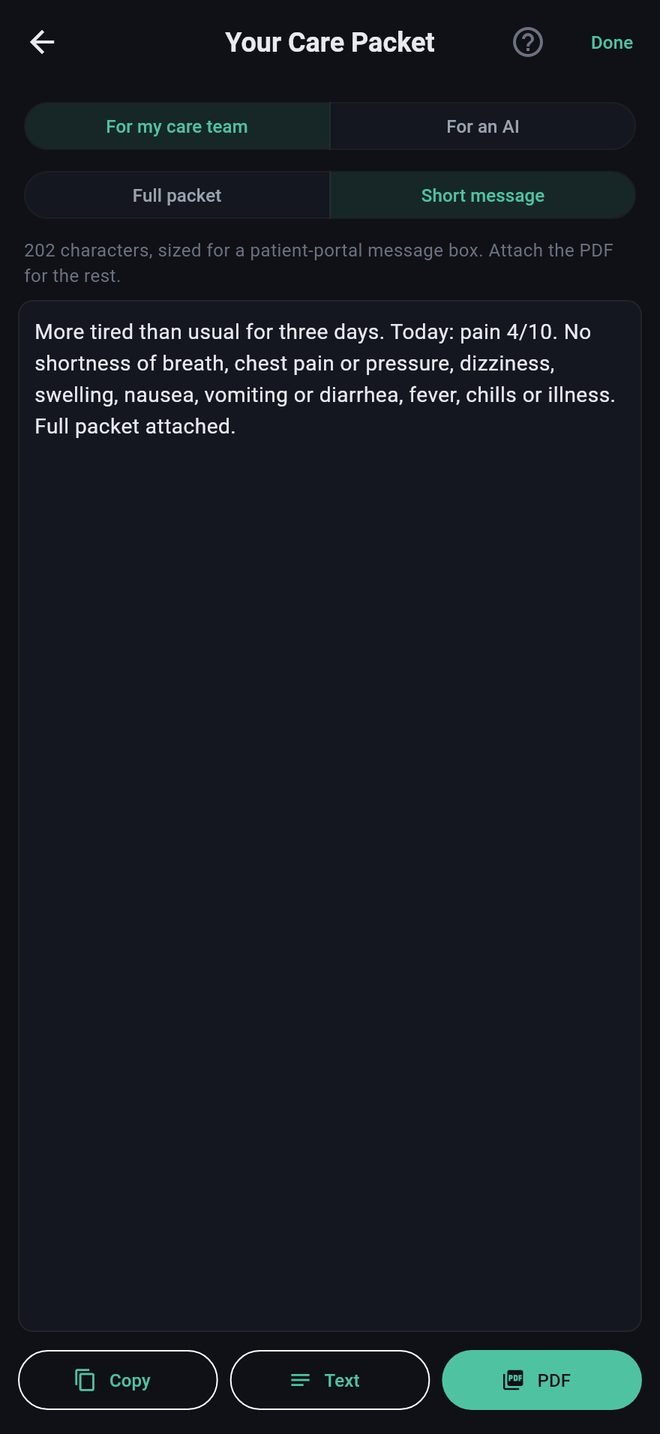
At the top of the finished packet are two switches.
For my care team
- Full packet is everything. Use it for an email, a printout, or as an attachment.
- Short message is a few sentences sized for the message box in a patient portal such as MyChart: your concern, what is present today, what you have tried, what you are asking. Send the PDF along with it for the rest.
For an AI
The same packet with a request written for an AI assistant. See Using a packet with an AI assistant.
The three buttons
- Copy puts what is on screen on the clipboard, to paste into a portal message.
- Text opens your phone's share sheet with the packet as text.
- PDF opens the share sheet with the packet as a PDF file, which keeps the tables lined up and is the best choice for an attachment or for printing.
Sharing means it leaves your phone
Before the first copy or share of a packet, the app tells you so. Until then, nothing in the packet has left your phone. Once you send it, a copy is with whoever you sent it to, and the app has no control over it.
Getting it into a patient portal
- Tap Short message, then Copy.
- Open your portal app and start a message to your care team.
- Paste.
- Go back to Aevora, tap PDF, and save the file or attach it to the same message if your portal accepts attachments.
Packet formats and sharing
Full packet, short message, PDF or text, and what sharing means.
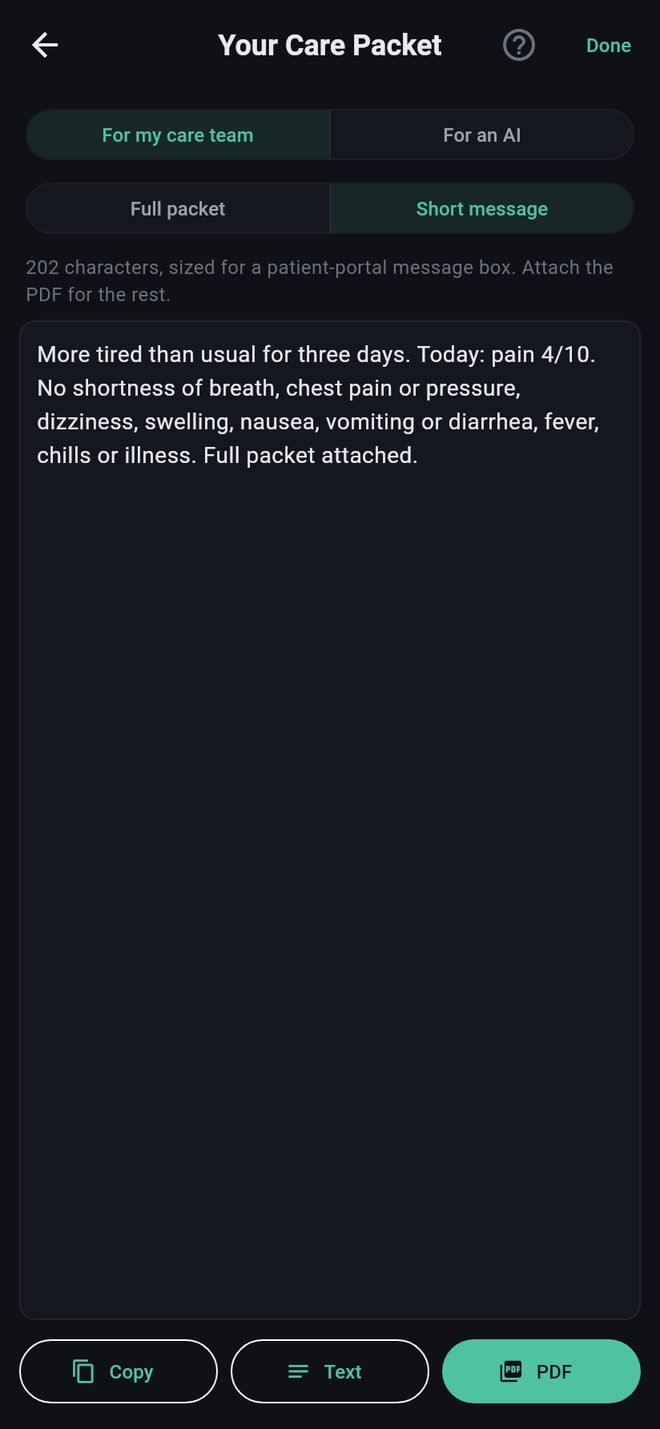
At the top of the finished packet are two switches.
For my care team
- Full packet is everything. Use it for an email, a printout, or as an attachment.
- Short message is a few sentences sized for the message box in a patient portal such as MyChart: your concern, what is present today, what you have tried, what you are asking. Send the PDF along with it for the rest.
For an AI
The same packet with a request written for an AI assistant. See Using a packet with an AI assistant.
The three buttons
- Copy puts what is on screen on the clipboard, to paste into a portal message.
- Text opens your phone's share sheet with the packet as text.
- PDF opens the share sheet with the packet as a PDF file, which keeps the tables lined up and is the best choice for an attachment or for printing.
Sharing means it leaves your phone
Before the first copy or share of a packet, the app tells you so. Until then, nothing in the packet has left your phone. Once you send it, a copy is with whoever you sent it to, and the app has no control over it.
Getting it into a patient portal
- Tap Short message, then Copy.
- Open your portal app and start a message to your care team.
- Paste.
- Go back to Aevora, tap PDF, and save the file or attach it to the same message if your portal accepts attachments.